


Setting up a new smartphone may be both thrilling and intimidating, especially if you don’t know where to begin. With a few simple steps, you can customize your phone to meet your specific needs, ensuring it is both safe and efficient. Whether you’re upgrading from an older device or trying out a new brand like HONOR, mastering the fundamentals can save you time and frustration. In this tutorial, we’ll lead you through a step-by-step procedure to set up your new smartphone and transform it into a personalized tool that helps you with your everyday chores.
Step 1: Unbox and Prepare Your New Smartphone
The first step in setting up your new smartphone is to carefully unbox it. Begin by removing all of the packaging and accessories, including the charger, SIM tool, and protective case. Using a microfiber towel, carefully wipe down the phone to remove any dust or fingerprints. When you turn on the device, you will be required to pick your language, region, and connect to Wi-Fi. It’s critical to check for available software upgrades early on to guarantee your phone is running the most recent operating system. This step helps to avoid any potential complications before you begin further customization. To minimize disruptions during setup, ensure that your phone is fully charged or connected.
Step 2: Connect to Wi-Fi and Set Up HONOR Account
Once your device is turned on, the next step is to connect to Wi-Fi. This is critical for setting up your smartphone since it allows you to download important updates and apps. Tap your desired network and enter your password. After a successful connection, establish or sign in to your HONOR account. This account syncs your data and grants access to HONOR’s premium services, including cloud storage and device management. If you’re switching from another brand, you could be asked to restore data from a backup. Make sure your phone is synchronized with all of your accounts to ensure consistency across applications and services.
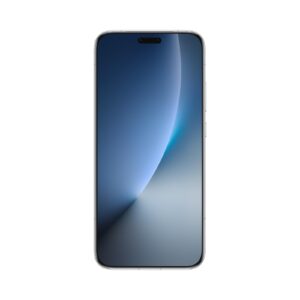
Step 3: Customizing Your Phone for Maximum Efficiency
Organizing Home Screen and App Layout
Organizing your home screen is a critical step in increasing your phone’s efficiency. Begin by organizing your most-used apps for quick access. Consider displaying them on the main screen and organizing related apps into folders to decrease clutter. HONOR smartphones frequently enable you to change the size of the app grid, allowing you to select the layout that best suits your needs. Use the dock for apps you commonly use, and feel free to delete or hide any unneeded apps. If you like a minimalist style, you may choose a clean screen with only the most important applications showing, which improves both aesthetics and functionality.
Setting Up Security and Privacy Features
Setting up security features guarantees that your phone is secure. Begin by activating a secure unlock technique, such as fingerprint recognition, face ID, or PIN. HONOR smartphones frequently have advanced security features such as app locks for further protection of crucial apps. In addition, enable the “Find My Phone” option to trace your device in case it is lost or stolen. For privacy, evaluate app permissions to ensure that apps only have access to the data they require. You may change these options at any moment in the privacy area. Finally, consider setting up two-factor authentication for your accounts to improve security.
Installing Essential Apps and Widgets
After you’ve set up your phone, you should install some crucial applications and widgets. Begin by going to the HONOR AppGallery or Google Play Store and installing programs that fit your lifestyle, such as social media, productivity tools, and entertainment apps. Don’t forget to install security programs like antivirus and VPN services. Widgets, which display information at a glance on your home screen, may also be installed for easy access to weather updates, calendar events, and news. If you’re considering upgrading your device, you may want to check out the HONOR Magic 8 pro price uk for the latest details. Arrange your apps and widgets in a way that enhances usability, ensuring you can easily monitor important information without opening apps individually.
Step 4: Personalizing Your Smartphone Experience
Choosing a Theme and Wallpaper
As you set up your smartphone, one of the enjoyable things to do is to customize its look. HONOR has a wide selection of themes for you to personalize your phone. From bright and colorful to simple and minimalist, the Themes shop has a wide variety of alternatives for you to choose from. After that, pick a wallpaper that speaks to who you are and what you’re about. Honor gives you the option to use one of their stock wallpapers or to pick your own picture. Changing the background and theme on your phone is a great way to make it unique and express your personality.
Setting Up Notifications and Sounds
Setting up your phone’s notifications and sound options allows you to minimize distractions and remain in control of alerts. In the settings, change your ringtone and notification sounds to something nice but not disturbing. You may also select various sounds for calls, texts, and app notifications. You can set up priority notifications on HONOR phones to ensure that only vital alerts get through when you’re busy. Consider using Do Not Disturb mode at particular hours to minimize unneeded disruptions. Adjust the vibration settings for calls and notifications according to your particular preferences to improve the overall experience.
Customizing Shortcuts and Quick Settings
Customizing shortcuts and fast settings is an excellent method to save time and improve your phone’s performance. Begin by modifying the quick settings menu, which provides rapid access to Wi-Fi, Bluetooth, and other useful features. On HONOR smartphones, slide down from the top of the screen to expose these shortcuts, then rearrange them to prioritize the ones you use the most. You may also create custom shortcuts for programs and features that you commonly use. For example, establishing a shortcut to your camera or flashlight can save you time by providing rapid access from the home screen or quick settings menu.
Conclusion
Setting up your new smartphone like an expert entails making sure it meets your specific requirements. By unpacking and prepping your phone, connecting it to Wi-Fi, and creating a HONOR account, you build the groundwork for a seamless experience. Customizing the layout, security features, and app installation improves usability, and customizing the design and alerts adds a distinctive touch. These procedures not only improve your smartphone, but also provide you with a sense of control and comfort. Following these easy steps will ensure that your new gadget meets and exceeds your expectations.
